
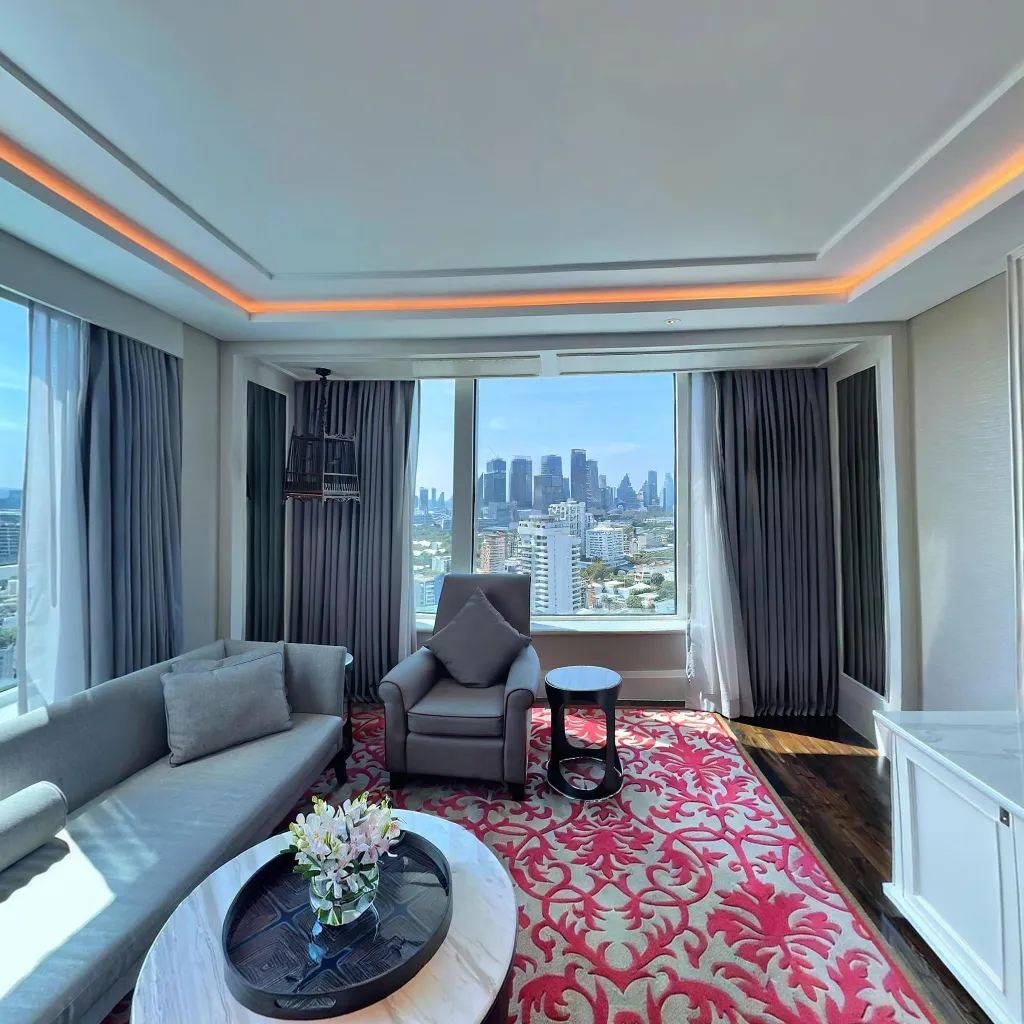
Embedding a 360 virtual tour on your website converts visitors who are already on your site from passive browsers to active explorers of your space. Pages with embedded 360 tours see average session duration increase from under 2 minutes to over 5 minutes — and session duration is one of the most significant signals in Google's organic search ranking algorithm. This guide covers every embedding method, platform-specific integration, and optimisation technique.
How 360 Tour Embedding Works
The iFrame Method
The standard way to embed a 360 virtual tour is via an HTML iFrame tag. An iFrame embeds a webpage within another webpage — the 360 viewer loads inside the iFrame on your page. The tour content is hosted on the platform (Travvir, Kuula, Momento360, etc.) and your website simply displays it through the iFrame container.
The basic iFrame embed code looks like this:
<iframe
  src="https://app.travvir.com/tour/YOUR-TOUR-ID"
  width="100%"
  height="500"
  frameborder="0"
  allowfullscreen
  allow="xr-spatial-tracking; gyroscope; accelerometer"
></iframe>
The allowfullscreen attribute enables the viewer to expand to full screen. The allow attribute grants permissions needed for gyroscope-controlled viewing on mobile (essential for a good mobile experience).
Getting Your Embed Code from Travvir
In your Travvir dashboard: select your tour → click Share → select Embed → copy the provided iFrame code. Travvir's embed code includes the correct permissions and aspect ratio settings pre-configured. You can customise the width and height parameters before pasting into your site.
Website Platform Integration
WordPress
In the WordPress block editor (Gutenberg): add a Custom HTML block where you want the tour to appear, paste the iFrame embed code, and publish. Do not use the "HTML" mode in a paragraph block — this strips iFrame tags. You must use the dedicated HTML block.
For WordPress sites using page builders (Elementor, Divi, WPBakery): use the HTML widget/module in the same way — add an HTML element and paste the iFrame directly into it.
Squarespace
Squarespace uses an Embed block for external content. Add an Embed block to your page, switch to the "Embed Code" option (not URL embed, which only works for whitelisted domains), and paste the iFrame code. Squarespace preserves the iFrame and renders it correctly.
Wix
In Wix Editor: Add → Embed → HTML iFrame → paste your embed code. Wix uses a sandboxed embed component that correctly renders 360 viewers. Resize the component on the canvas to match your desired dimensions.
Shopify
For product or store pages: Edit the page in the theme's code editor (Online Store → Themes → Edit Code → find the relevant template file) and add the iFrame HTML directly into the template. Alternatively, use Shopify's Custom HTML section if your theme supports it.
Webflow
In Webflow Designer: add an Embed element to your canvas, paste the iFrame code into the HTML embed field. Webflow renders iFrames natively and the 360 viewer works with full interactivity including gyroscope on mobile.
Optimising the Embed for Performance
Lazy Loading
By default, an iFrame loads immediately when the page loads — even if the visitor never scrolls to where the tour is displayed. Adding the loading="lazy" attribute delays loading until the viewer is about to scroll into view:
<iframe
  src="https://app.travvir.com/tour/YOUR-TOUR-ID"
  loading="lazy"
  width="100%"
  height="500"
  frameborder="0"
  allowfullscreen
></iframe>
Lazy loading improves page load speed for visitors who don't reach the tour section — important for Core Web Vitals scores and Google's page experience signals.
Responsive Dimensions
Hard-coded pixel dimensions (e.g., width="800" height="500") create a fixed-size embed that overflows or looks cramped on mobile. Use a CSS wrapper for responsive embedding:
<div style="position:relative; padding-bottom:56.25%; height:0; overflow:hidden;">
  <iframe
    src="https://app.travvir.com/tour/YOUR-TOUR-ID"
    style="position:absolute; top:0; left:0; width:100%; height:100%; border:0;"
    allowfullscreen
    allow="xr-spatial-tracking; gyroscope; accelerometer"
    loading="lazy"
  ></iframe>
</div>
The padding-bottom: 56.25% creates a 16:9 aspect ratio container that scales responsively. Change to 66.66% for a 3:2 ratio or 75% for 4:3.
Where to Embed for Maximum Impact
Highest-Impact Placement Pages
Homepage: For businesses where the physical space is a key selling point (hotels, restaurants, gyms, showrooms). Place the tour prominently in the hero section or immediately below it.
Location/Contact page: Embeds that answer "what does this place look like?" reduce friction for first-time visitors and improve direction request rates.
Property listing pages (real estate): Place immediately after the listing photos gallery. Buyers who exhaust the static photos naturally move to the tour.
Product/Showroom pages (retail): Embed in the relevant product or collection page to show the space where products are displayed.
Booking/Conversion pages: The page where the purchase or booking decision is made. A tour on a hotel booking page or gym membership signup page provides final confidence for visitors on the edge of converting.
Social Media and Other Channel Embedding
Facebook natively renders 360 photos as interactive posts when uploaded directly (not as links). Upload your equirectangular image file directly to Facebook — it auto-detects the 360 metadata and applies the spherical viewer. For sharing a Travvir tour link on Facebook, the preview will show a static thumbnail — consider uploading the source 360 image directly for the interactive experience. For more on social media 360 photo strategy, see our guide on sharing 360 photos on social media.
Google Business Profile
Add your 360 tour URL to the "Virtual Tour" field in your Google Business Profile to enable the "See Inside" feature in Google Maps and local search results. This is distinct from embedding on your website — it places your tour directly in the Google search experience.
Email Marketing
iFrames do not work in email clients (most strip them for security reasons). Instead: include a screenshot or animated GIF of the tour as the email image, with a "Explore the Tour" button linking to the full tour URL. The visual preview in the email drives clicks to the tour on your website.
Conclusion: Embedding Maximises Tour ROI
A 360 virtual tour that exists only as a shareable link has limited impact. Embedding it directly on your highest-traffic and highest-intent pages puts the tour in front of visitors at exactly the right moment in their decision process — when they're already on your site, considering a purchase.
The technical process is straightforward: copy the iFrame code from Travvir, paste it into an HTML block on your website, apply lazy loading and responsive wrapper CSS, and place it on the pages where it will have the most conversion impact.