
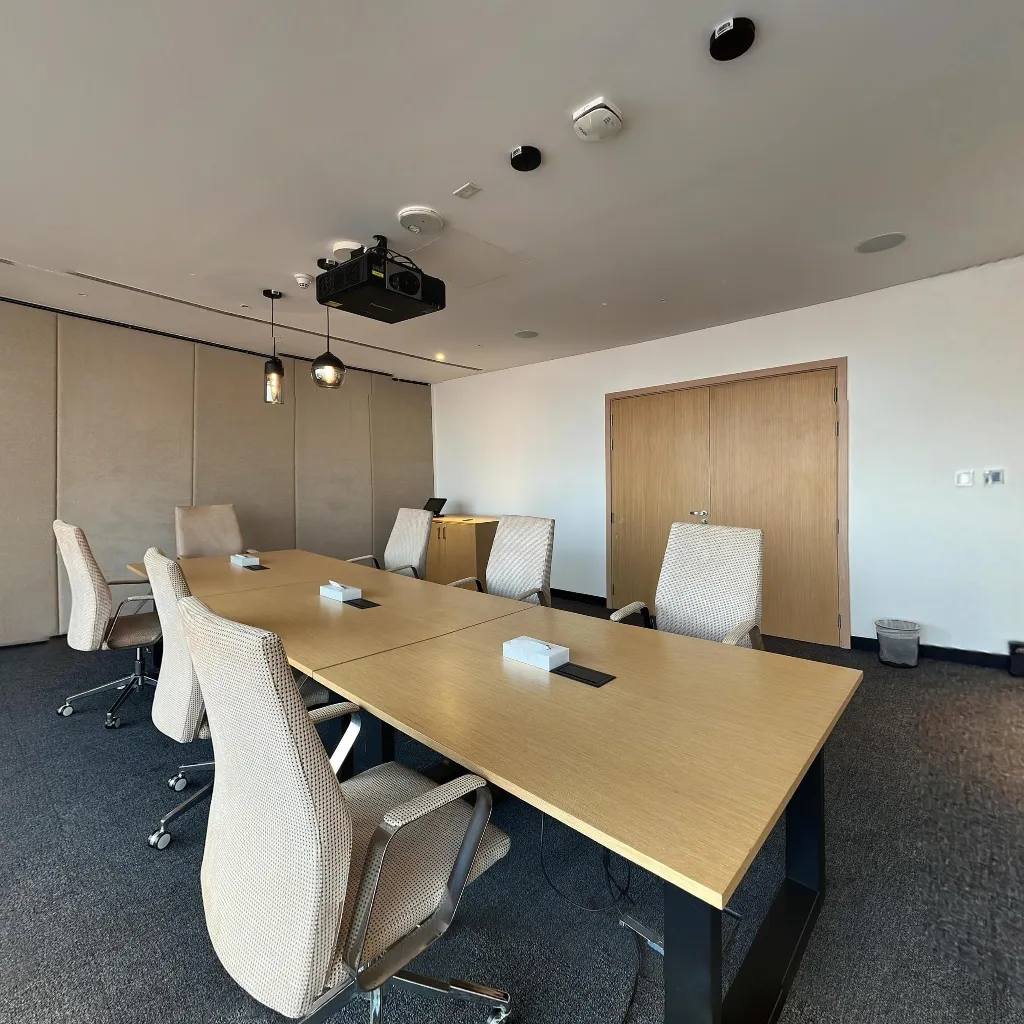
An immersive property tour does more than show a home — it makes buyers feel as if they're already there. As remote buying becomes the norm and international investment grows, the ability to deliver a truly immersive property experience from a smartphone is a critical competitive edge for every real estate agent.
What Makes a Property Tour "Immersive"?
Immersion comes from three elements working together: full 360° coverage (every direction the viewer can look), high visual quality (sharp, well-lit, properly exposed images), and intuitive navigation (the ability to move between rooms as naturally as walking through the space). Miss any one of these and you have a tour — not an immersive experience.
Preparation: Setting the Scene for Maximum Immersion
Immersion is destroyed by distraction. Before capturing, remove all personal items, clutter, and temporary objects. Add fresh flowers in living areas. Ensure all light bulbs are working and matched in colour temperature. Open interior doors to maximise the sense of space. If possible, shoot during daylight and open curtains fully to show the view from windows.
Capture Techniques for Immersive Tours
Eye-Level Capture Height
Capture at approximately 1.5m height — natural eye level for an average adult. This is the perspective buyers will relate to most instinctively. Capturing too low makes ceilings look tall and floors look enormous; too high feels like a surveillance camera, not a visitor's perspective.
Strategic Room Positioning
Position yourself in the corner of the room diagonally opposite the main feature (fireplace, kitchen island, best window view). This maximises visible floor space and draws the viewer's eye toward the property's key selling points.
Doorway Shots for Transition Immersion
Capture one additional panorama standing in each doorway, facing into the next room. These transition shots make the navigation between rooms feel physically believable — viewers feel like they're actually walking from room to room.
Adding Immersive Details with Hotspots
Use information hotspots to add context that deepens immersion: room dimensions, ceiling height, window aspect, underfloor heating indicators, storage notes. Buyers exploring the tour should be able to answer every practical question without leaving the tour.
Continue Reading
Related Articles
Download Travvir & Start Creating