
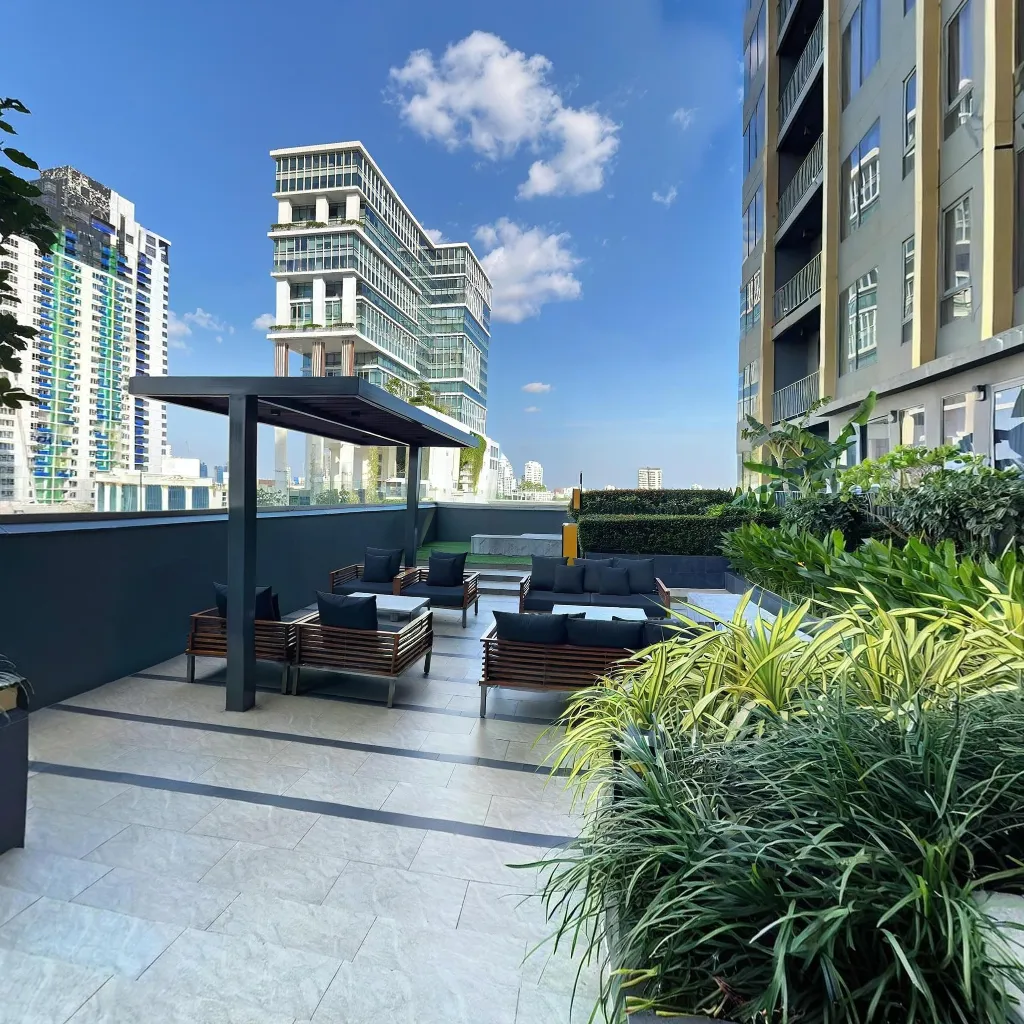
Google Street View is how millions of people preview a business before they visit. When your interior appears as connected 360° photos on Google Maps and your Google Business Profile, searchers can walk through your space from Search, Maps, or the Street View app — without booking an appointment first.
With Travvir you publish from the app — without a personal Google login. Imagery is placed on your Google Maps location; Travvir is the Street View publisher shown on that place.
There are two paths. For a single scan, choose the place on Google Maps, select the scenes, then publish them to Street View. For a 360° tour, choose the place on Google Maps and publish the linked tour directly — no separate per-room upload.
Key Takeaways
- Google Street View for businesses means linked indoor 360° panoramas on Maps and your Business Profile (“See inside”).
- Travvir is the Street View publisher at your Maps place — you do not connect a personal Google account in the app.
- Single scan: pick the Google Maps place, select scenes, then publish. 360° tour: pick the place and publish the tour directly.
- Google reviews new imagery; most businesses see it live within 24–72 hours (sometimes longer).
- Hotspots and branding stay on your Travvir tour; on Google, viewers see panoramas and arrow-style room links.
- Listings with strong 360 content tend to earn more engagement on Google — a signal that supports local SEO.
What Is Google Street View for Businesses?
When people talk about putting their business on Google Street View, they usually mean indoor connected panoramas tied to a real address — not only the outdoor car-camera imagery on the street. Those interior spheres appear in Google Maps, Google Search (your Business Profile panel), and the Street View app as blue dots or a “See inside” experience.
Each scene is a full 360° photo. When scenes are linked, viewers tap arrows to move room to room — the same navigation pattern users already know from outdoor Street View.
Why Publish on Google Street View?
Businesses with virtual tours and 360 photos on Google often see stronger profile engagement than listings with flat photos alone. That matters because engagement (direction requests, website clicks, calls, photo views) feeds local relevance signals.
Practically, Street View answers questions static photos cannot: How big is the space? Is it accessible? Does it match your brand? A clear tour reduces uncertainty and brings in better-qualified visits.
How Travvir Publishes to Google Street View Today
Publishing stays inside Travvir. You first choose the matching Google Maps place (name and pin). Travvir then submits the panoramas through its authorized Street View publisher account. On Street View, Travvir appears as the publisher for that place; coverage still sits at your address. Google reviews the imagery before it goes live on Maps and your Business Profile.
How to Publish with Travvir
Capture on your phone, then publish from Share → Google Street View. The product flow is the same as on our Google Street View page.
Single scan
After you capture one scan, choose the place on Google Maps, select the 360° scenes to include, then publish them to Street View. Flat floor plans or 2D slides are skipped. Accurate pins keep the scan on the right building.
360° tour
When rooms are already linked as a tour, choose the place on Google Maps and publish the tour directly. Travvir submits the connected panoramas together — you do not upload each room by hand.
After you submit
Travvir usually queues processing in a few minutes. Google then reviews for policy and quality. Plan on 24–72 hours before imagery is public on Maps, Search, and the Street View app; busy periods can take longer.
What appears on Google vs in Travvir
On Google, viewers see your panoramas and Google’s arrow navigation between linked scenes. Custom Travvir hotspots, labels, cards, and branding are not shown on Street View — keep those on the embeddable Travvir tour you share on your website or in listings.
Technical Requirements (Google Street View)
- 360° only: Equirectangular JPEG panoramas (not flat photos).
- Resolution: Meet Google’s minimum (about 7.5 MP; higher is better — see our 360 image size guide).
- Location: Scenes must match a real, publishable place; follow Google’s content policies for your category.
- Business details: Accurate Maps place so Google can attach panoramas to the right listing. Travvir is the Street View publisher at that place.
Travvir vs the Street View App Alone
The free Street View app is ideal for a quick single photo sphere from your phone. Travvir fits when you need several rooms, consistent quality, hotspots on your own hosted tour, and one-click publish of the full linked set to Google. Many businesses use Travvir for the tour they embed on their site and publish the same capture to Street View for Maps discovery.
Fallback: Manual Upload
If you ever need a manual path, export equirectangular images from Travvir and upload via the Street View app or Google Business Profile photos. Direct publish from Travvir is faster for multi-room tours and keeps scene links aligned.
Best Practices
Shoot during daylight or with all lights on; avoid mixed color temperatures. Start at the entrance customers use. Refresh your tour after renovations or seasonal merchandising changes so Maps stays trustworthy.
Continue Reading
Download Travvir & Start Creating