
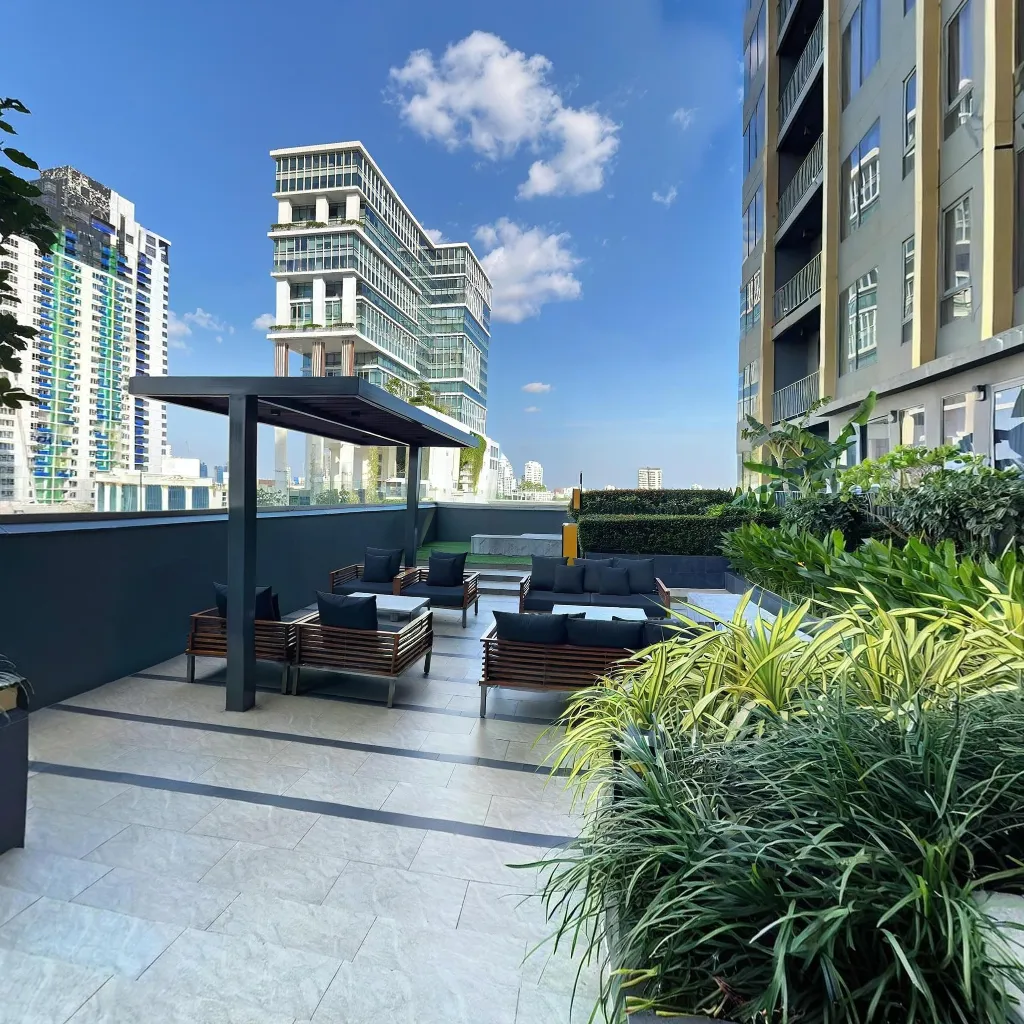
A Google Street View virtual tour puts your business on Google Maps — and every search result that surfaces your listing. When a potential customer searches for your business category near them, your interactive 360° tour appears directly in the search results, increasing click-through rates and establishing trust before they ever visit.
Imagery is placed on your Google Maps location. Travvir is the Street View publisher shown on that place — you do not sign in with a personal Google account in the app.
A single scan is published by choosing the Maps place, selecting scenes, then sending them to Street View. A 360° tour is published by choosing the place and sending the linked tour directly. Capture and product details live on the Google Street View page; the in-app steps are in how to publish from Travvir.
What Is a Google Street View Virtual Tour?
A Google Street View Business Tour is a 360° virtual tour published to Google Maps via your Google Business Profile. It appears in Google Search, Maps, and Knowledge Panel — giving searchers an immersive look inside your business from the world's largest search engine.
SEO Benefits of Google Street View Virtual Tours
Businesses with Google virtual tours see 2x higher engagement on their Google Business Profile compared to those without. The tour increases time-on-listing, signals to Google that your profile is complete and trustworthy, and can positively impact your local pack ranking position.
How to Create a Google Street View Virtual Tour
Option 1 — Capture with Travvir, publish to Google Street View
Create a scan or a linked 360° tour in Travvir, then open Share → Google Street View. Always start by choosing the correct Google Maps place. For a single scan, select the scenes and publish. For a tour, publish directly. Travvir is the publisher at that place. Google typically reviews within 24–72 hours.
Option 2 — Use the Street View App Directly
Download the Google Street View app, tap the camera icon, and follow the guided capture process. This is simpler but lacks Travvir's AI quality enhancement and multi-room linking. Best for a quick single-location tour.
Step-by-Step Upload Process
1. Open Google Business Profile Manager. 2. Select "Photos" then "360 Photos." 3. Upload your equirectangular images (minimum 7.5 megapixels). 4. Set the location pin accurately. 5. Submit for review — typically approved within 48 hours. 6. Once approved, link the tour from your Business Profile's "Virtual Tour" section.
Best Practices for Google Business Virtual Tours
Capture during daylight hours for the best natural light. Include your storefront exterior as the entry point. Ensure the space is clean and professionally presented. Add multiple interior scenes — Google rewards profiles with more content. Update your tour at least once a year to keep it current.
Continue Reading
Download Travvir & Start Creating